
In iGaming, most of the operators track affiliates’ performance by checking clicks and FTDs generated by them.
But that only tells you half of the story.
If you want to understand which affiliates are profitable, which campaigns are scalable, and where your margins are shrinking, you need to go deeper. That is exactly where the Affiliate Report in Affnook becomes important.
In this article, I will explain what the Affiliate Report is, what each section means, and how you can use it properly to make smarter decisions.
What is the Affiliate Report?
The Affiliate Report is a detailed performance dashboard inside Affnook.
It helps you monitor:
- Clicks
- Registrations
- Deposits
- Revenue
- Payouts
- Player activity
Instead of checking multiple reports, this feature brings everything together in one place so you can evaluate affiliate performance clearly.
If you are managing multiple affiliates, campaigns, or brands, this report becomes your main performance control panel.
How to Access the Affiliate Report in Affnook
Accessing the report is simple:
- Log in to your Affnook dashboard
- Go to Reports
- Click on Affiliate Report
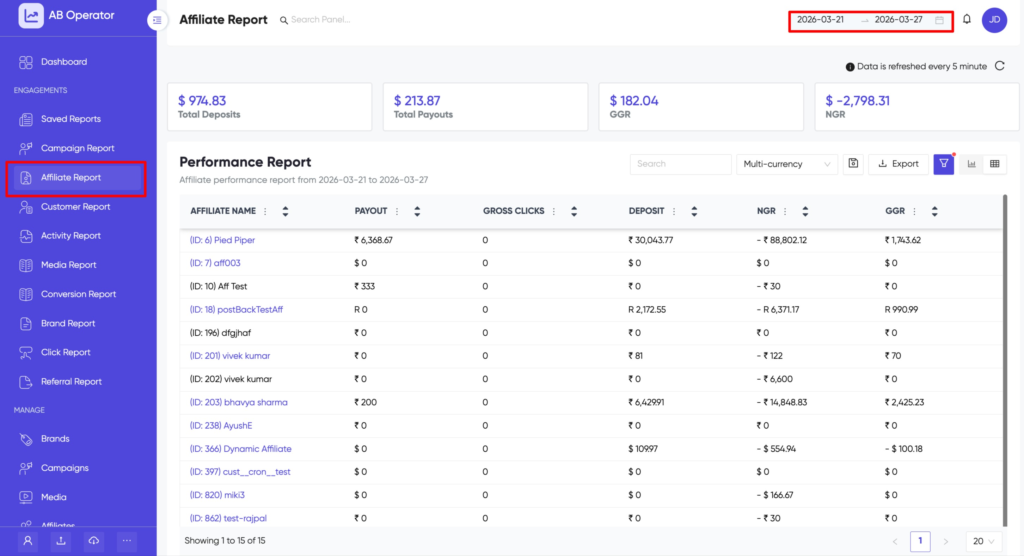
Once you open it, you will see a data table showing affiliate performance. But the real power of this feature comes from customization.
Understanding the Key Metrics
Before you start applying filters or using advanced breakdown options, it is important to clearly understand what each core metric actually tells you. These numbers are not just columns in a table. Each one answers a specific business question.
Let’s simplify them.
Affiliate Name
This shows which affiliate generated the traffic, registrations, and conversions.
Why it matters: It helps you evaluate individual partner performance. If one affiliate is generating high revenue while another is only sending low-quality traffic, this column helps you identify that quickly.
Payout
This is the total commission amount payable to the affiliate for the selected period.
Why it matters: This represents your acquisition cost. You should always compare payout with NGR. If payouts are high but NGR is low, your margins are shrinking.
Gross Clicks
This shows the total number of clicks received, including duplicate and invalid clicks.
Why it matters: It helps you understand traffic volume. However, high gross clicks do not always mean good performance. You need to compare clicks with registrations and deposits to judge quality.
Deposits
This is the total amount deposited by users referred by the affiliate.
Why it matters: Deposits indicate player value. An affiliate sending fewer players with higher deposit amounts may be more profitable than one sending large traffic with small deposits.
GGR (Gross Gaming Revenue)
This is the total revenue generated by referred users before any deductions.
Why it matters: It shows the overall earning potential from affiliate traffic. But it does not reflect your actual profit yet.
NGR (Net Gaming Revenue)
This is revenue after deducting bonuses, winnings, fees, and chargebacks.
Why it matters: NGR reflects your real earnings. It directly impacts Rev-Share payouts and overall profitability.
If you only focus on clicks and FTDs but ignore NGR, you are not measuring true performance. Traffic volume is important, but profitability is what actually grows your business.
How to Apply Filters (And Why They Matter)
When you first open the Affiliate Report, you will see overall performance data. That gives you a general view, but it does not answer specific questions.
If you really want insights, you need to use filters.
To apply filters:
- Click the filter icon in the top right corner of the report
- Select the parameters you want to analyze
- Apply them to customize your data view
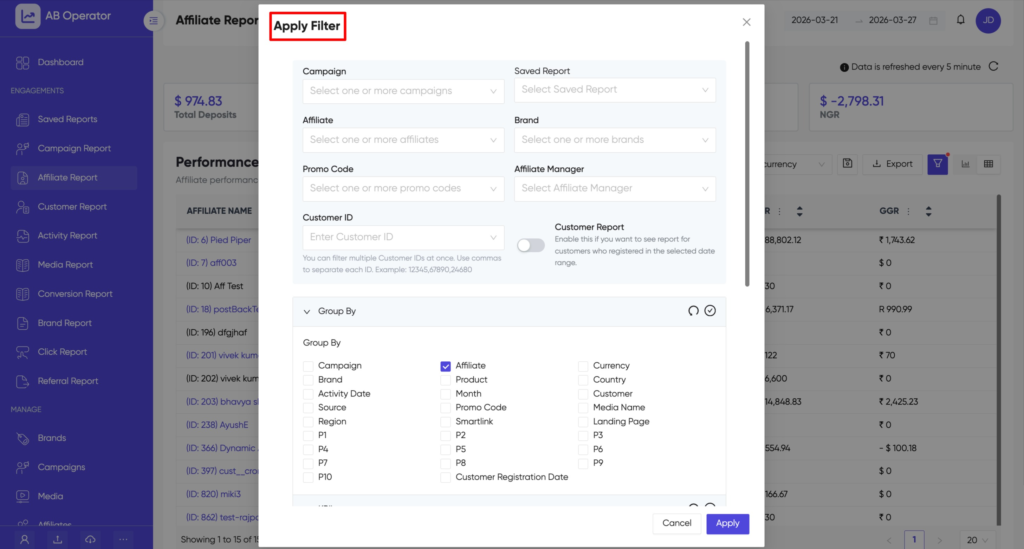
Now, let’s understand how each filter helps you make better decisions.
Campaign
Select one or more campaigns to view and compare their performance across metrics like clicks, registrations, and revenue.
Saved Report
Save your preferred filter combinations to quickly access the same report setup without repeating manual selections.
Affiliate
Filter and analyze performance for one or multiple affiliates to compare results and track contributions.
Brand
View and evaluate performance across different brands within your account to understand brand-level results.
Promo Code
Track how specific promotional codes perform in terms of usage, conversions, and revenue generation.
Affiliate Manager
Filter affiliates based on the manager assigned to them to monitor portfolio-level performance.
Customer ID
Search and analyze detailed data for specific players using their unique IDs.
Customer Report Option
Display data only for customers who registered within the selected date range for focused analysis.
Final Thoughts
Affiliate marketing is not only about getting traffic.
It is about:
- Driving quality players
- Tracking real revenue
- Managing payouts properly
- Protecting margins
- Scaling what performs
The Affiliate Report in Affnook gives you visibility into all of this.
If you use filters smartly and focus on the right KPIs, you will not just monitor performance. You will improve it consistently.