Managing affiliates within any type of affiliate program can be challenging. But managing invoices and payments? That can be especially hard within iGaming.
When there are so many payout models and methods to contend with, in addition to currencies, affiliate agreement terms, conversion rates, keeping compensation logic consistent and waiting or validation periods attached to each campaign and partner, it is easy to get confused.
As affiliate marketing programs scale, these problems tend to grow.
Affnook’s system of invoicing and payments is built specifically to resolve the overhead arising from this in a meaningful manner. The resultant set of features enables iGaming affiliate payments to go through in a seamless manner while forming a structured audit trail.
This guide will walk you through every stage in this workflow so that you can set it up, and use it for your program’s invoicing and payouts.
How to Create a New Invoice?
To begin managing invoices and payments for any affiliate, navigate to the ‘Invoice’ section and select the option ‘Create Invoice’.
A form will appear prompting you to fill in the following details:
- Affiliate: Select the publisher for whom the invoice is being generated
- Date Range: Define the time period the invoice covers
- Preference Type: Set to campaign-wise by default
- Currency: Choose the appropriate currency for the invoice
Once everything is added, you can preview the created invoice.
Editing the Invoice Before Finalizing
Before generating the final affiliate payment invoice, several fields can be adjusted to reflect your specific requirements:
- Net Terms: Modify the payment period if the default does not apply
- Tax Rate: Adjust the tax rate to match your programme’s configuration
- Adjustments: Click ‘Add Adjustments’ to enter the amount, quantity and description
- Internal Notes: Add notes that will remain visible internally and will not appear on the affiliate-facing invoice
You can simply select ‘Generate Invoice’ when you’re happy with the filled in details.
The Major Fields That Must Be Filled
Every invoice generated on Affnook carries a standard set of fields that make managing invoices and payments straightforward across your entire affiliate network roster:
- ID: A unique identifier assigned to each invoice for reference and tracking
- Affiliate: The partner for whom the invoice has been generated
- Status: Reflects the current state of the invoice — ‘Draft’, ‘Approved’, or ‘Paid’
- Amount: Automatically fetched by the system based on the selected date range
- Created On: The date the invoice was generated
- Date Range: The period the invoice covers
- Actions: The dropdown from which you can process payments, edit details, or manage invoice status
If you want to make changes to a particular approved invoice, move the given invoice to a ‘Draft’ status and then go ahead with the edits. However, once an invoice is ‘Paid’, it can no longer be changed in any way.
Managing the Payment Status
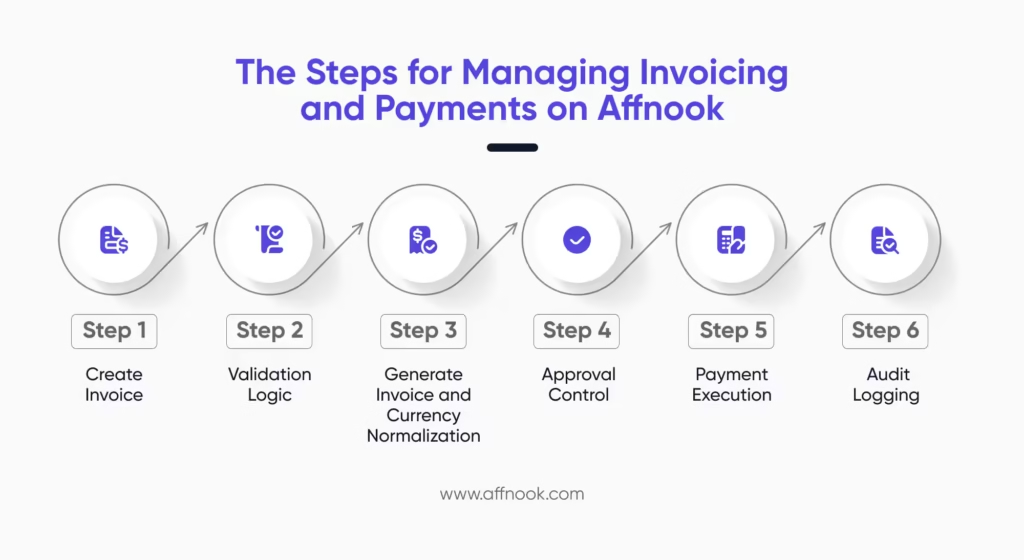
You can consider managing invoices and payments on Affnook to be a two step process.
- The Approval
To mark any invoice as ‘Approved’, you can go to the ‘Actions’ menu and select the same. The default status for all generated invoices is ‘Draft’.
- The Payment
Once a payment has been completed, return to the Actions dropdown and click ‘Mark as Paid’ to update the invoice’s status accordingly and close the payment cycle for the given iGaming affiliate.
Tracking Transactions and Payment Logs
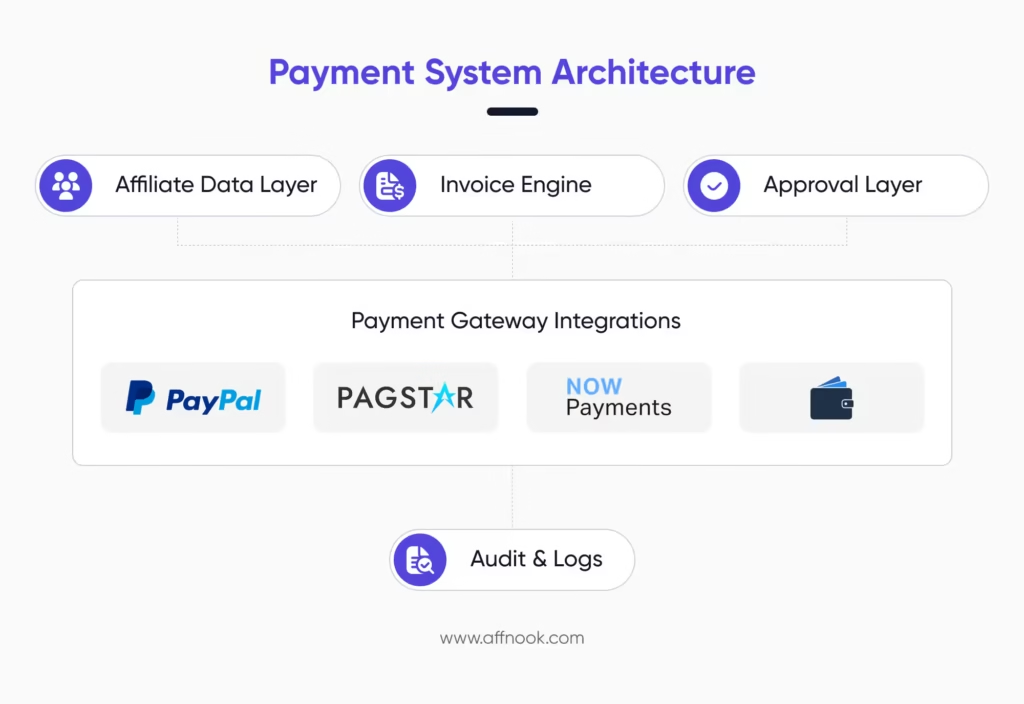
Affnook maintains two separate records to give operators full visibility over payment activity:
- Transaction Section: All invoices marked as ‘Paid’ will appear here automatically, giving you a running log of every payment made to affiliates across your programme.
- Payment Logs: All payments processed via PayPal or Pagster (or any other integration used by you) are recorded in the ‘Payment Logs’ section, creating a structured audit trail for every transaction.
Adding Custom Payment Methods
Beyond standard affiliate payout processing, Affnook allows operators to configure custom payment methods for affiliate payouts — and to attach bonus or deduction logic to each method. This is particularly useful for operators who want to incentivise the use of specific payment channels, such as integrated wallets.
Please note that this is an add-on feature for managing invoices and payments at the moment, and needs to be enabled by your account manager before it becomes accessible.
How Can You Set it Up?
Under ‘Configuration’, you’ll find ‘Invoices’. You can simply get started by selecting the ‘Invoice Payment Method’. Click on ‘Add Payment Method’ and start by filling out the fields listed below:
- Name: The name of the payment method
- Description: A brief description for internal reference
- Status: Set to active by default
- Operator: Choose from ‘Bonus’, ‘Deduction’, or ‘No Change’
- Value: Enter a percentage between 0% and 100%
Given that your casino affiliate program may be integrated with a wallet or particular payment method, you may want to encourage its adoption. To do this, you can configure a bonus condition so that affiliates who choose to receive payments via that wallet receive an additional incentive automatically.
On the affiliate’s version of the Affnook panel, there are options related to managing invoices and payments as well.
The given invoices appear under the ‘Invoice’ section. They have the option of taking ‘Action’ which leads to a pop-up being displayed. They can review the payment method, a breakdown of the original amount and a final amount post application of the bonus or deductions.
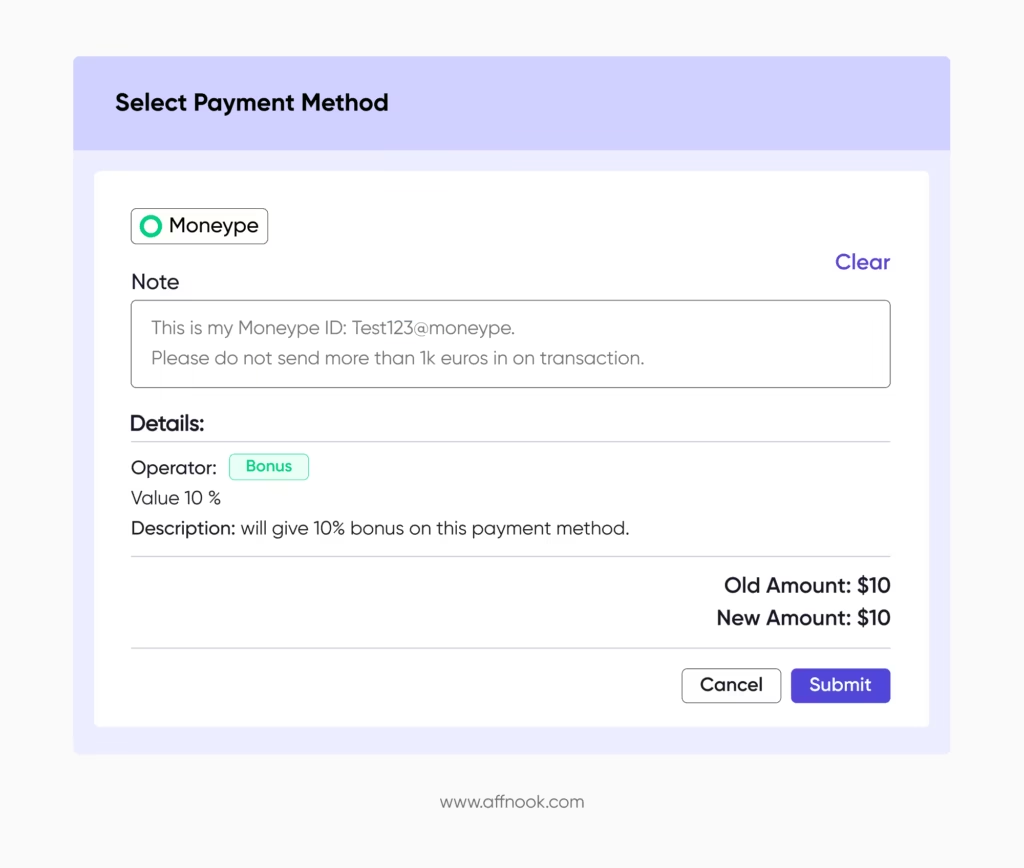
The iGaming affiliate can add specific instructions related to the payment, such as the payment ID or any other details that need to be followed during the payment process.
These notes will be visible on your operator panel for reference during processing.