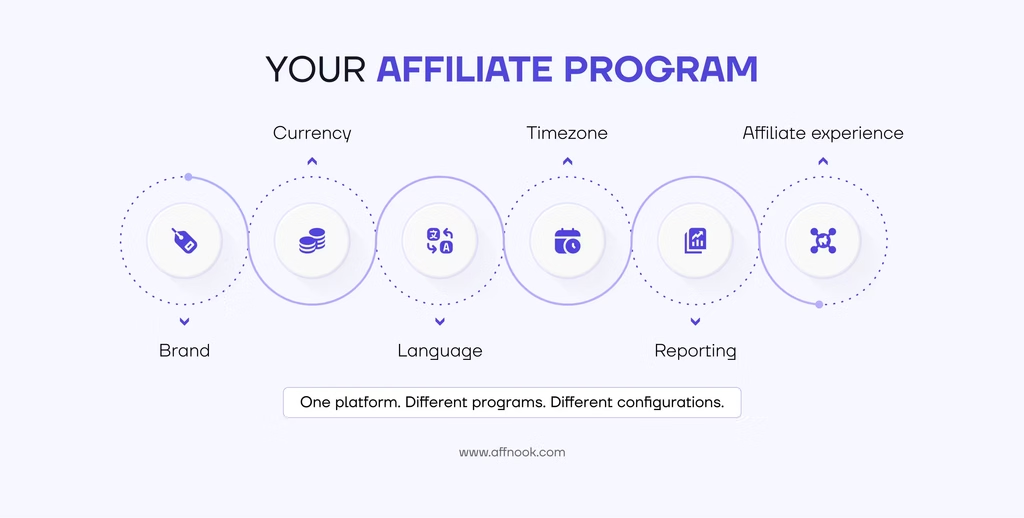
Every iGaming operator runs their program differently. They could have their own unique branding, currencies, regions, and teams that log in at different times of the day. These different entities behave differently and should hence be treated differently as well. If the dashboard looks and behaves the same for everyone, a lot of confusion can be created for the multiple programs that the operator is associated with.
That’s why Affnook‘s dashboard settings feature lets you customize the dashboard down to the details that actually matter for day-to-day operations.
Why are Customizable Dashboard Settings Necessary?
- Brand Consistency – Uploading your own logo and picking a theme means that the panel and the invoices that it generates should look like an extension of the organization instead of a third-party tool.
- Fewer errors, less manual corrections – Setting the right currency, language, and time zone up front means your team isn’t mentally converting numbers or translating labels every time they check a report. That reduces the chance of misreading data or misreporting figures to affiliates.
- Faster reporting – Defaults like your “Start of Week Day” and “Report Date Range” mean you’re not resetting the same filters every time you pull a report. The panel already opens to the view your team actually works with.
- Smooth experience for affiliates – Since the branding gets carried over to the invoices and the login page, affiliates get an experience that is consistent and professional whenever they interact with the iGaming affiliate program.
In short, a few minutes spent configuring these dashboard settings once saves your team repeated friction every single day after. Let us now understand how it is done.
Steps to Follow For Dashboard Settings
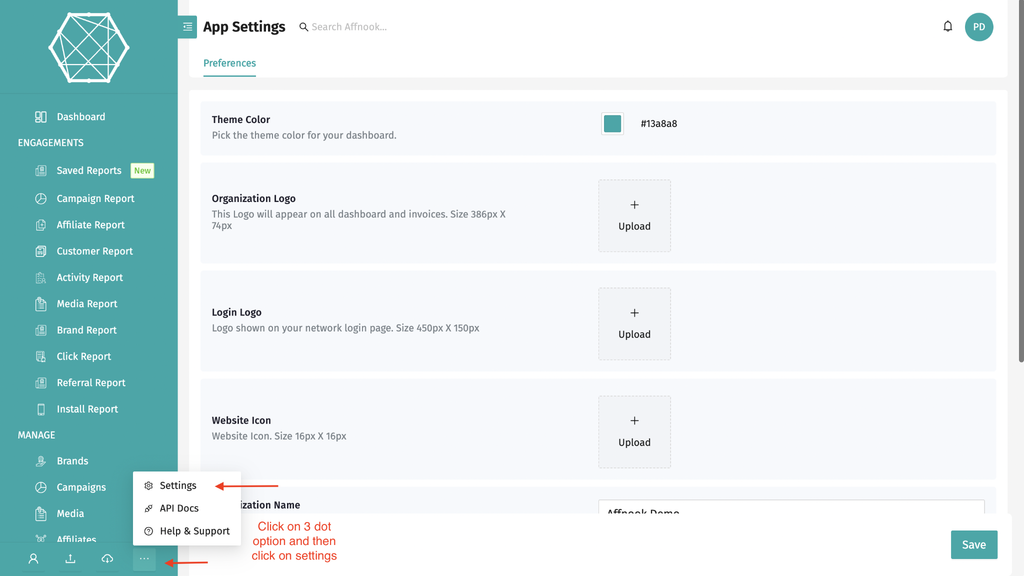
First, you must navigate to the “Access Settings”. To access the App Settings page, click on the three-dot option located at the bottom of the interface. This will take you to the settings page where all the customizations below can be made.
Theme Colour
Navigate to Preferences and select your desired theme color from the color picker. The chosen color will apply across the dashboard for consistency.
Upload Organization Logo
Under Preferences, click Upload under the Organization Logo section. Make sure the logo is sized correctly (386px x 74px). This logo will appear on the dashboard and on invoices.
Upload Login Logo
For the Login Logo, click Upload and ensure the size is 450px x 150px. This logo will be shown on your network login page.
Upload Website Icon
Upload your Website Icon with a size of 16px x 16px. This will be displayed in browser tabs.
Enter Organization Name
Enter the name of your organization in the Organization Name field. This will be displayed throughout the platform.
Set Currency
Choose the appropriate Currency from the available list in Preferences. This will affect transaction displays across the platform.
Set Language
Select your preferred Language from the drop-down list. The interface will update to your selected language.
Timezone Configuration
To change the Timezone settings, reach out to your account manager. The timezone will affect reporting and system logs.
Start of Week Day
Set the Start of Week Day based on your organization’s preference. This will determine the start of the week in reports and activity logs.
Default Days for Report Date Range
Configure the default number of days for the Report Date Range. This setting will pre-fill the date range whenever a report is generated.
Make the Dashboard Feel Like Your Own
For an affiliate program, the dashboard isn’t only used by the internal team. Affiliates may also interact with branded elements such as the login page and invoices. That’s why Affnook separates the different logo settings rather than treating branding as a single upload.
The Organization Logo is used across the dashboard and invoices, while the Login Logo appears on the network login page. The Website Icon gives the platform its own browser-tab identity.
Together, these small details of dashboard settings make the platform feel less like an external system and more like part of the organization’s existing digital environment.
Wrapping It Up
Configuring the dashboard settings gives you more than a cosmetic upgrade. From your theme colour and logos to the currency, language, time zone and report defaults, each setting plays a part in making Affnook feel like it was built around your program.
Take a few minutes to review these preferences once, and you’ll notice the difference in your day-to-day work. Reports open the way your team needs them, figures appear in the currency you actually operate in, and every affiliate who logs in or receives an invoice sees a consistent, professional version of your iGaming brand. Since these settings can be revisited anytime, you can also update them as your program grows, whether that means entering a new market, adding a new currency, or rebranding.