In the iGaming industry, managing an affiliate program is not about adding new partners. It also depends on how well your affiliate program is set up and controlled.
Affiliate managers do lots of work, from managing approvals to tracking affiliates, reporting, and commission structures. If these settings are not configured correctly, managing affiliates can become difficult.
That is why the affiliate partner settings in affnook become an important factor.
For administrators, Affnook provides a central place where they can manage key parts of their affiliate program, like onboarding, tracking, reporting, and more. These settings help businesses manage affiliates more effectively and ensure partners can see accurate performance data on time.
In this guide, you will learn how to complete affiliate setup in Affnook by configuring the most important affiliate partner settings, including general settings, report settings, and referral program settings.
Why Affiliate Partner Settings Matter?
Before moving to the configuration steps, it is important to understand why affiliate partner settings are essential. They form the foundation of your affiliate program, impacting onboarding, tracking, reporting, and overall partner experience.
Compliance and data protection are equally important. With regulations like GDPR, managing how customer data is stored and displayed is crucial. Features like masking customer IDs and restricting access help ensure compliance while protecting user privacy.
A well-configured setup helps iGaming operators:
- Automate affiliate onboarding and management
- Protect crucial data and follow compliance rules
- Give affiliates clear insights into their performance
- Control commission structures and referral payouts
- Ensure consistent tracking across campaigns
Affnook allows administrators to centralize these controls so that the entire affiliate ecosystem operates smoothly.
1. Configuring Affiliate General Settings
The Affiliate General Settings section acts as the foundation of your affiliate program. It allows administrators to define default configurations that affect how affiliates interact with the platform.
These settings help streamline workflows, automate approvals, and improve privacy management.
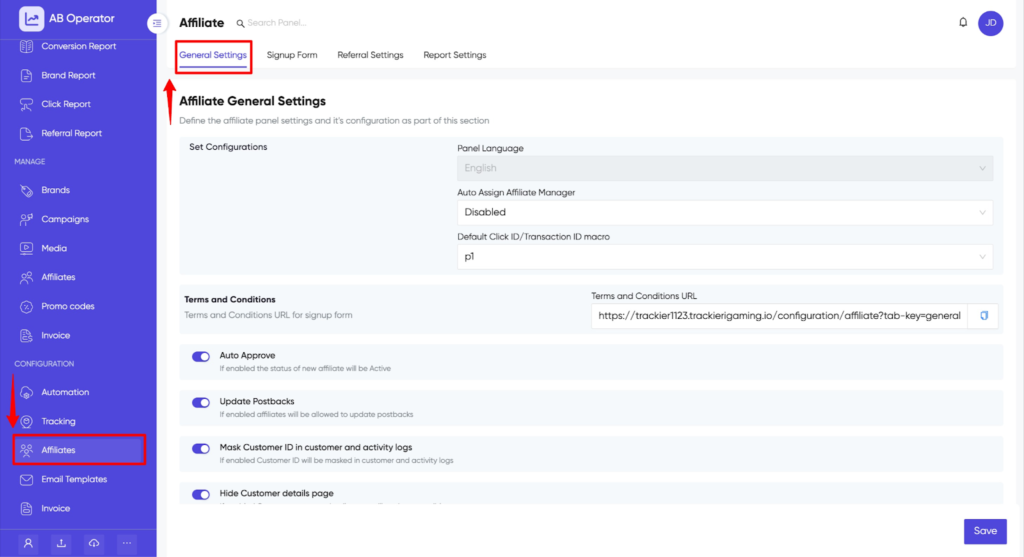
Step 1: Access Affiliate General Settings
To begin configuring affiliate partner settings, follow these steps:
- Navigate to the Configuration section in the left-hand menu.
- Select Affiliates.
- Click on the General Settings tab.
Only users with admin privileges can modify these settings.
Step 2: Configure Key Settings
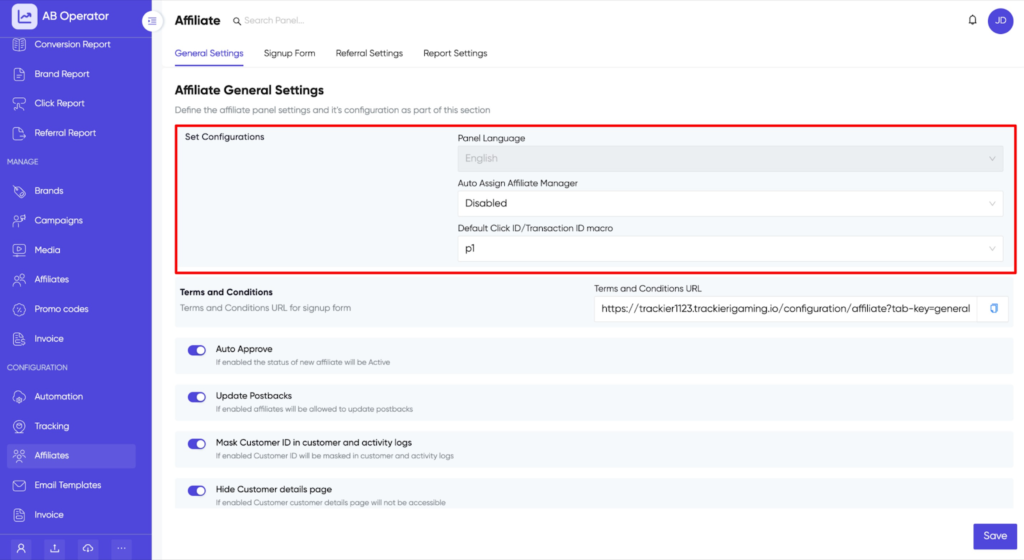
Once inside the General Settings tab, administrators can configure several core options.
- Panel Language
Select the preferred language for the affiliate panel using the dropdown menu. This ensures that affiliates can navigate the platform in their preferred language.
- Auto Assign Affiliate Manager
You can automatically assign an affiliate manager to new affiliates. This helps maintain clear communication and improves relationship management between affiliates and operators.
- Default Click ID or Transaction ID Macro
This field allows you to define a macro, such as p1 or p2, that will be used across campaigns for consistent tracking.
Consistent macro usage ensures accurate attribution and helps reduce tracking errors.
Step 3: Enable or Disable Key Features
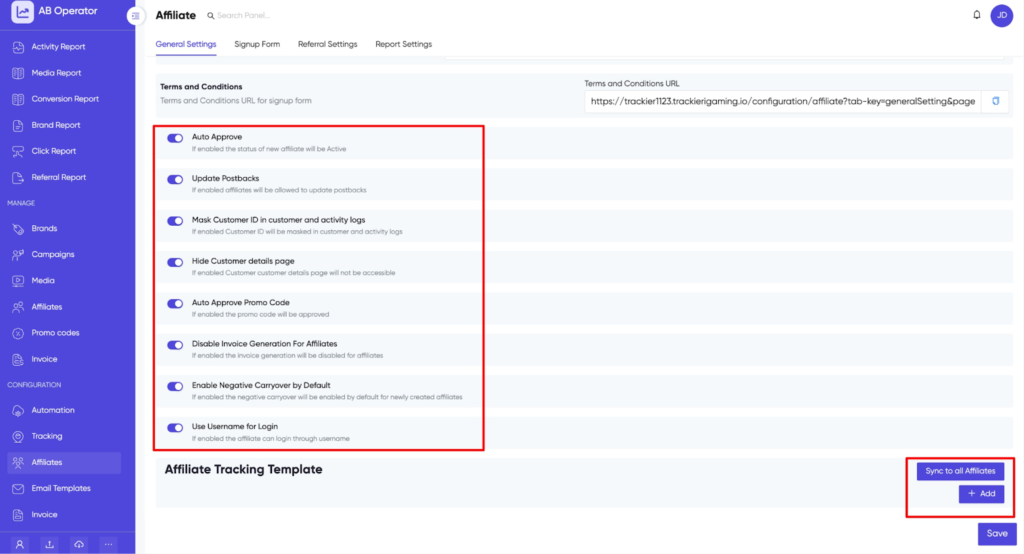
Affnook allows you to control several important operational features through simple toggle options.
- Auto Approve Affiliates
When enabled, new affiliates will be automatically approved after registration. This helps speed up onboarding and reduce manual work.
- Update Postbacks
This option allows affiliates to update their postback URLs directly.
- Mask Customer ID in Logs
For privacy and regulatory compliance, administrators can mask customer IDs in customer and activity logs. This is especially useful for maintaining GDPR compliance.
- Hide Customer Details Page
If this setting is enabled, affiliates will not be able to access detailed customer information.
- Auto Approve Promo Codes
Enabling this feature automatically approves promo codes submitted by affiliates.
- Disable Invoice Generation for Affiliates
This option prevents affiliates from generating invoices within the platform.
- Enable Negative Carryover by Default
When enabled, negative balances will carry forward automatically for newly created affiliates.
These features help operators maintain better control over affiliate operations.
Step 4: Configure Tracking Templates
Tracking accuracy is a key part of affiliate management.
Affnook allows administrators to configure Affiliate Tracking Templates that define macros used in tracking links.
To configure tracking templates:
- Add custom macros and their values.
- Click Add to include additional macros.
- Use Sync to All Affiliates to apply the template across all affiliates.
Once everything is configured, click Save to apply the changes.
2. Configuring Affiliate Report Settings
Another important part of affiliate partner settings is deciding which data affiliates can see inside their dashboard.
The Affiliate Report Settings section allows administrators to customize reporting metrics and widgets visible to affiliates.
This ensures that affiliates focus on relevant performance indicators without being overwhelmed by unnecessary data.
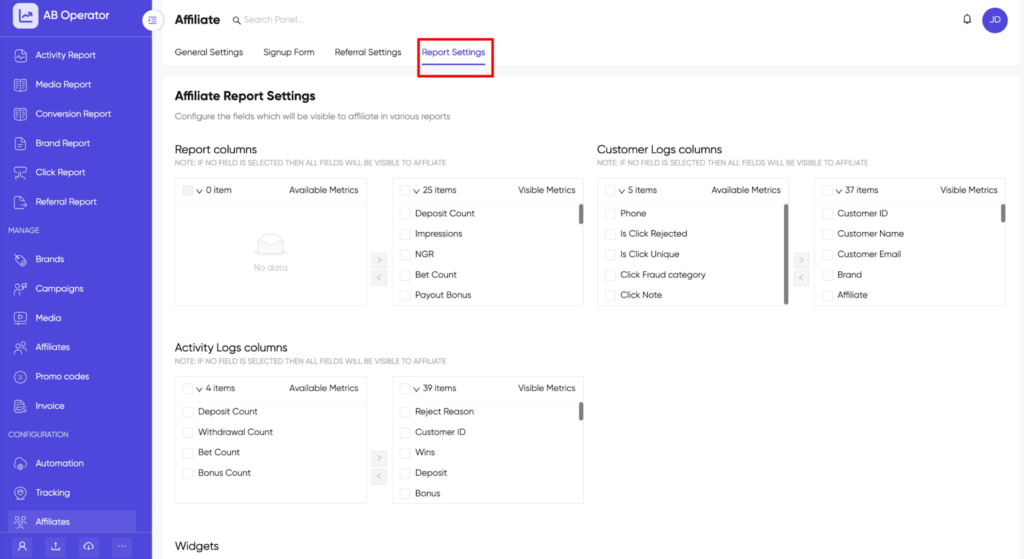
Step 1: Access Affiliate Report Settings
Follow these steps:
- Navigate to Configuration in the left-hand menu.
- Select Affiliates.
- Click the Report Settings tab.
Make sure you have the required permissions to update these settings.
Step 2: Configure Report Columns
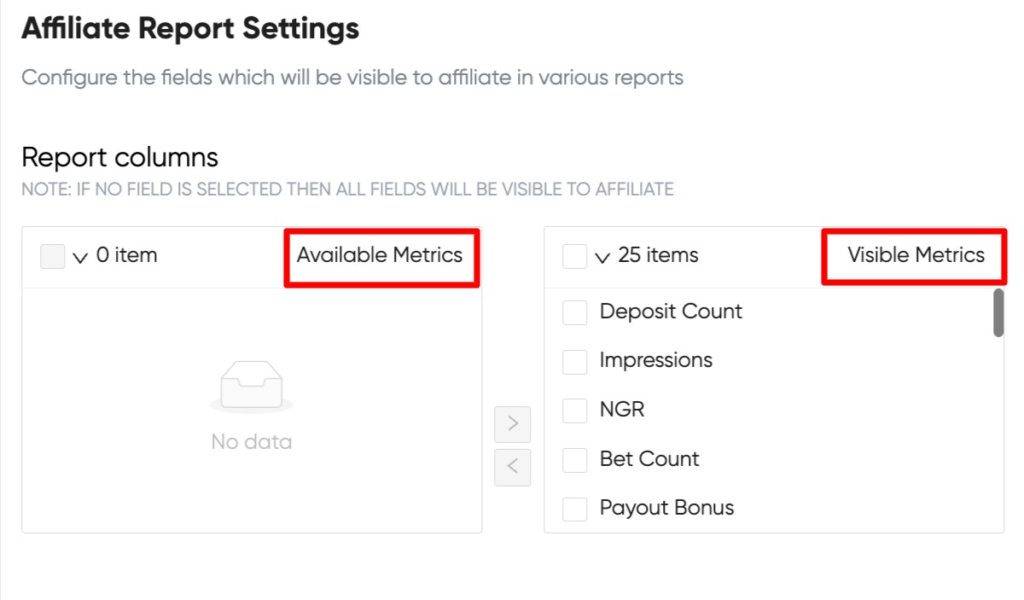
In the Report Columns section, administrators can control which metrics appear in affiliate reports.
Examples of metrics include:
- Payout
- FTD (First Time Deposits)
- Registrations
- Clicks
- Revenue
To customize visibility:
- Select metrics from the Available Metrics column.
- Move them to the Visible Metrics column using the arrow buttons.
If no metrics are selected, all metrics will remain visible by default.
Step 3: Configure Customer Logs
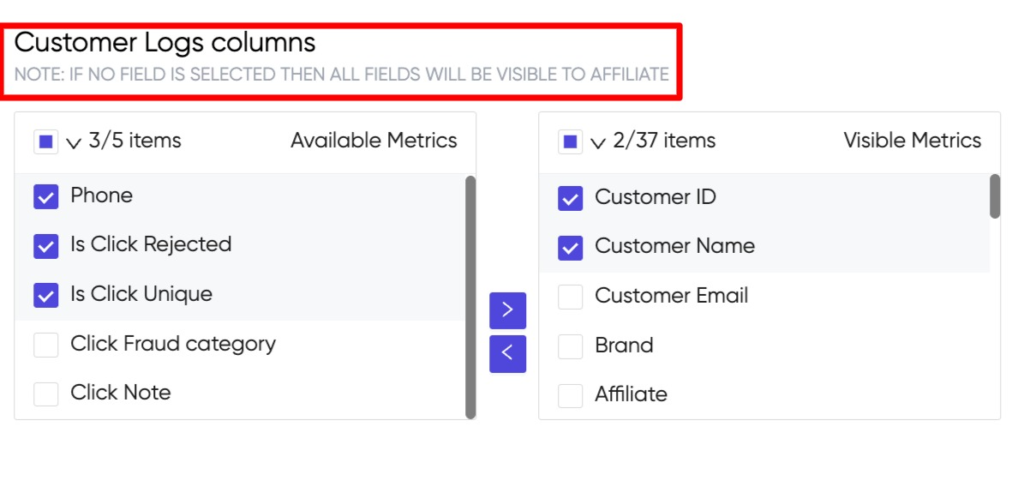
The Customer Logs Columns section allows you to decide what information affiliates can see about referred customers.
Common metrics include:
- Customer ID
- Country
- Registration date
- Last login date
Moving metrics to the Visible Metrics column will make them available in affiliate logs.
Step 4: Configure Activity Logs
The Activity Logs section focuses on player activity and engagement.
Metrics available here may include:
- Wins
- Bonuses
- Device type
- Session activity
Administrators can select the most relevant metrics and display them to affiliates.
Step 5: Configure Dashboard Widgets
Affnook also allows you to control the widgets displayed in the affiliate dashboard.
Examples include:
- Total CPA Payout
- Net Gaming Revenue (NGR)
- Total Impressions
- Conversion statistics
Widgets can be dragged into the Visible Metrics column to enable them.
Once everything is configured, click Save to apply the report settings.
3. Configuring Affiliate Program Referral Settings
Referral commissions are an important part of affiliate growth strategies. Affiliates often invite other partners to join the program, and referral commissions help incentivize that behavior.
Affnook allows administrators to configure referral commissions globally or at the partner level.
Global Referral Settings
Global settings define default referral commission rules for all affiliates.
Step 1: Access Global Referral Settings
- Navigate to the Affiliate section in the left-hand menu.
- Click Referral Settings.
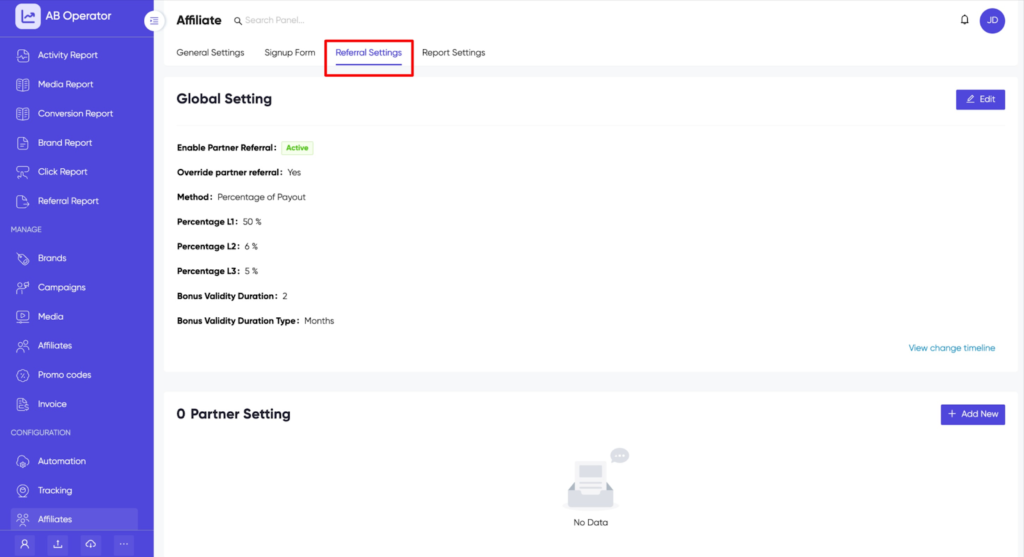
Step 2: Configure Global Referral Rules
Click Add under the Global Settings section.
You will then configure:
Status: Set the configuration as Active or Inactive.
Referral Calculation Method
Choose how referral commissions will be calculated:
- Percentage of Net Gaming Revenue (NGR)
- Percentage of Payout
- Percentage of CPA cumulative deposit payout
Referral Levels
Affnook supports multi-level referrals.
You can define commission percentages for:
- Level 1 (L1)
- Level 2 (L2)
- Level 3 (L3)
Example:
- L1: 10%
- L2: 20%
- L3: 30%
You can also enable Override Partner Referral if you want global settings to apply to all affiliates.
Once configured, save the settings.
Partner-Level Referral Settings
In some cases, operators may want to offer special referral commissions to specific partners.
Affnook allows administrators to configure partner-level referral settings that override global configurations.
Step 1: Access Partner Settings
Scroll to the Partner Settings section on the same Referral Settings page.
Step 2: Configure Individual Affiliate Settings
Click Add New and fill in the following fields:
Affiliate: Select the partner you want to configure.
Method: Choose the referral calculation method:
- Percentage of NGR
- Percentage of Payout
- Percentage of CPA cumulative deposit payout
Referral Percentages: Enter the commission percentage for L1, L2, and L3.
Click Submit to save the configuration.
Editing or Removing Partner Settings
Affnook also allows administrators to manage partner settings easily.
- Use Edit to modify an existing referral configuration.
- Use Delete to remove partner-specific settings.
If a partner-level configuration is removed, the system will automatically revert to the global referral settings.
Final Thoughts
Setting up affiliates correctly is essential for running a successful affiliate program.
With Affnook’s affiliate partner settings, operators can control onboarding workflows, reporting visibility, tracking templates, and commission structures from a single platform.
By configuring general settings, report settings, and referral program settings, businesses can build a structured and scalable affiliate program that benefits both operators and partners.
Whether you are onboarding new affiliates or optimizing an existing program, the right affiliate setup in Affnook ensures better transparency, improved tracking accuracy, and stronger partner relationships.