
Affiliate marketing depends a lot on creatives for promotions.
Banners, promotional images, and campaign visuals are what affiliates use to promote your offers. But many teams face one common problem while promoting. Creatives are stored in different places, like emails, drives, or chats, and affiliates keep asking for banners. Sometimes they even use old creatives by mistake.
This can slow down campaigns and create confusion.
That is why Affnook provides the Upload and Manage Media feature.
This feature works as a media asset management system, allowing you to upload all campaign creatives in one place and share them easily with affiliates. Instead of sending files manually, you can simply upload them to the platform and connect them with campaigns.
In this guide, I will explain how the Upload and Manage Media feature works and how you can use it step by step.
What is the Upload and Manage Media Feature?
The Upload Media feature in Affnook helps you store and organize campaign creatives on the platform.
It acts as a centralized media asset management solution where you can manage banners, promotional graphics, and other marketing assets that affiliates use to promote campaigns.
Once the media is uploaded, affiliates can easily access it and generate tracking links to promote the campaign.
The biggest advantage is that everything stays in one place. This improves media inventory management and makes it easier for both operators and affiliates to manage campaigns.
With this feature, you can:
- Upload unlimited creatives
- Connect creatives to multiple campaigns
- Control whether affiliates can see the media
- Generate banner codes and tracking links
- Change tracking domains when needed
This makes overall media management simpler and more organized.
Why Media Management Matters in Affiliate Marketing
Before going into the steps, it is important to understand why this feature matters.
Affiliates rely heavily on ready-to-use promotional material. If creatives are difficult to find or outdated, promotions slow down.
Many teams still manage creatives across emails, shared drives, and chats, which creates confusion and delays. According to the Content Marketing Institute, marketers often face challenges in organizing and distributing content, which highlights the need for a centralized system.
A structured media asset management system helps in several ways.
- First, it ensures affiliates always use the latest creatives.
- Second, it reduces back-and-forth communication between operators and affiliates.
- Third, it allows campaign managers to maintain control over branding and messaging.
Strong media inventory management also helps you track which creatives are active, hidden, or outdated.
By using the Upload and Manage Media feature, operators can simplify how creatives are distributed while keeping the affiliate experience smooth.
Step 1: Navigate to Add Media
The first step is accessing the media upload section inside Affnook.
To do this:
- Go to the Manage section in the platform dashboard
- Click on Media
- Then select Add Media
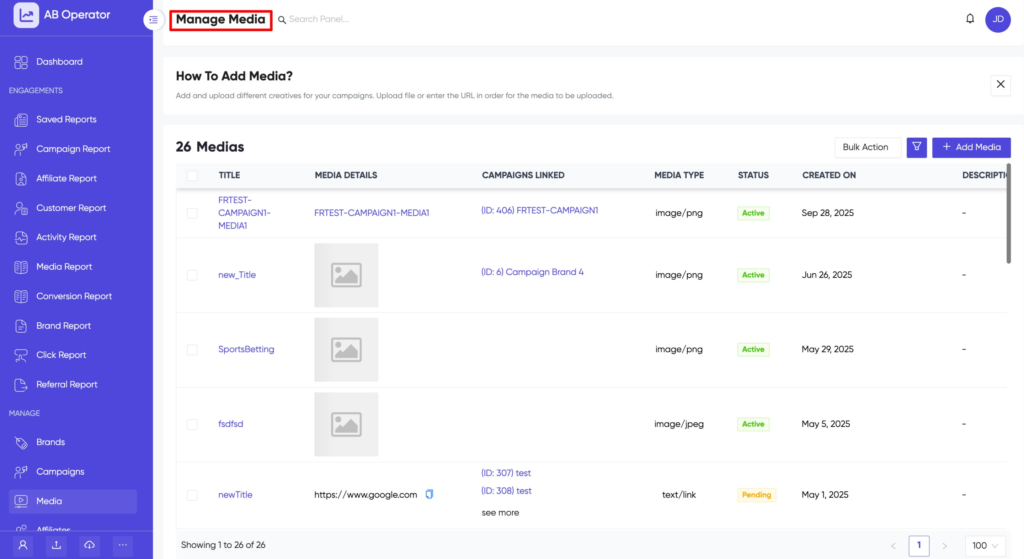
This section is where your media management system begins.
From here, you can upload and organize all your campaign creatives, making your media asset management process more structured.
Step 2: Add Media Details
Once you open the Add Media page, you need to fill in the required details for the creative you want to upload.
Each field plays an important role in organizing your assets and ensuring smooth media management within the platform.
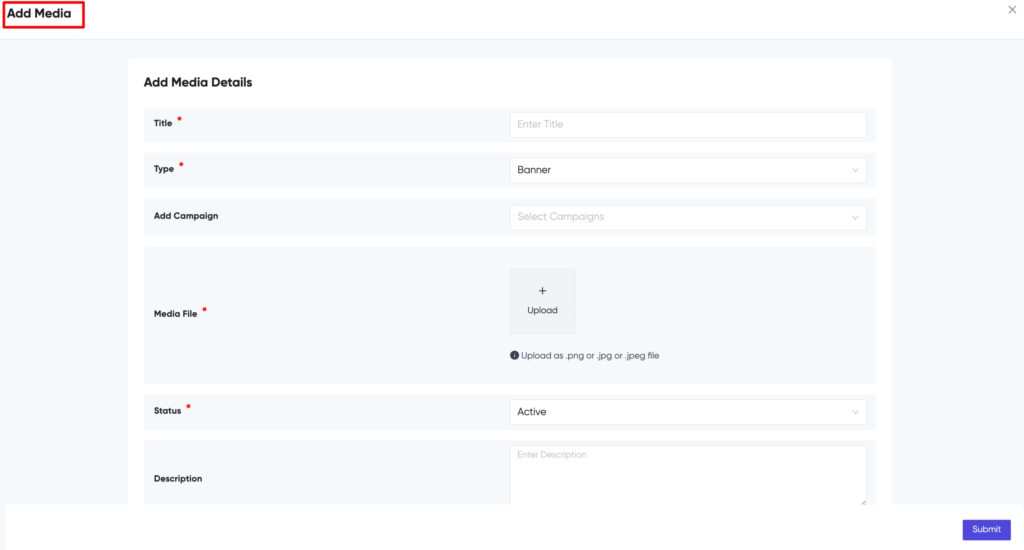
Title
The title is the name of your media file.
Choose a clear and descriptive name so affiliates can instantly understand what the creative is about. For example:
- Summer Casino Bonus Banner
- Sports Betting Campaign Banner
- Welcome Offer Creative
A well-defined title improves media inventory management by making assets easy to search and identify.
Type
Here, you select the type of media you are uploading.
This helps categorize creatives properly within your media asset management system, making it easier to organize and filter assets later.
Add Campaigns
This feature allows you to link a single creative to multiple campaigns.
Instead of uploading the same banner again and again, you can reuse it across different campaigns, making your media asset management more efficient.
Media File
This is where you upload the actual creative.
Click on Media File and add the asset you want to use, such as a banner, promotional image, or any campaign-related creative.
This step ensures all your assets are stored centrally, improving your overall media management workflow.
Media Status
Affnook allows you to control the visibility of your creatives using different status options.
Active
When a media file is marked as Active, it becomes visible to affiliates. They can access it and generate tracking links for promotion.
Hidden
Hidden media remains linked to campaigns but is not visible to affiliates. This is useful when you want to upload and prepare creatives in advance before making them live.
Description
You can add a short description to provide additional details about the creative, such as banner size or campaign context.
This helps in better media asset management, especially when handling a large number of creatives.
Submit the Media
After filling in all the details, click Submit.
Your creative will be uploaded successfully and added to your media inventory management system, ready to be used across campaigns.
Step 3: Generate Code and Tracking Links
Once the media is uploaded, the next step is generating tracking links.
Tracking links allow affiliates to promote the creative while the platform tracks clicks and conversions.
To generate a link:
- Go to the Media List
- Scroll to the right side of the media entry
- Click Manage
Now you can generate the banner code.
Select:
- The campaign
- The affiliate
Then click Generate Link.
The platform will create a banner code and tracking link that the affiliate can use for promotion.
This ensures smooth media management and accurate campaign tracking.
Step 4: Modify the Tracking Domain
Affnook also allows you to change the tracking domain for the generated link.
This can help with branding or campaign tracking.
To do this, simply select the preferred domain from the drop-down menu.
The tracking link will update automatically.
Final Thoughts
Managing campaign creatives becomes much easier when everything is organized in one place.
The Upload and Manage Media feature in Affnook works as a complete media asset management system that helps operators upload, organize, and distribute creatives without confusion.
Instead of sending banners manually, you can store them on the platform and link them to campaigns.
This improves media inventory management, saves time, and ensures affiliates always have access to the latest creatives.
By using this feature, you can streamline your media management, keep campaigns organized, and improve the overall affiliate experience.