
Managing an iGaming affiliate program is more complicated than simply monitoring clicks and conversions. You’ll need to know which affiliates are responsible for generating referrals, how they contribute to your revenue, and what commission each affiliate earns.
This becomes more important when your program includes multiple affiliates and sub-affiliate levels. If you lack a reporting program, it’s nearly impossible to identify which affiliates are contributing to your total performance.
The referral report gives you a comprehensive overview of referral activity, helping you keep tabs on the number of referrals, NGR, and payouts of different referral tiers.
What is a Referral Report?
The referral report indicates referral activity generated by your iGaming affiliates and partners.
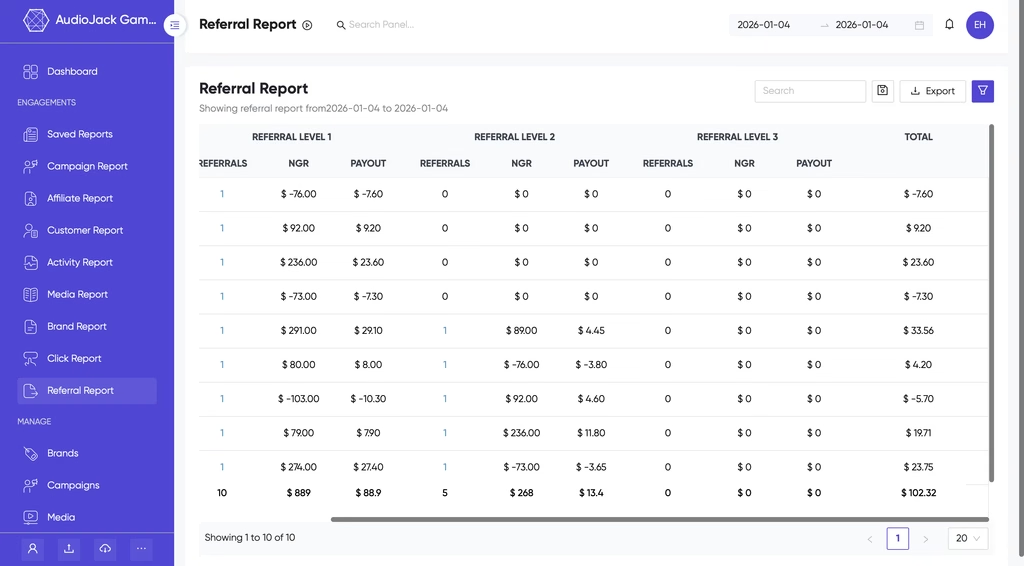
Affnook’s referral report shows you the referral activity at Level 1, Level 2, and Level 3.
The number of users referred at each level, along with NGR, is presented, with their payments according to the data.
As an example, a direct affiliate can have their referrals via their own traffic, while their sub-affiliates will have additional referrals as well. The referral report will help you view this activity together rather than separately by each level of referral.
Why Use a Referral Report?
A referral report helps iGaming affiliate managers keep track of the efficiency of the partner network. The main advantages are as follows:
- Track referral activity: Monitor the number of users referred by affiliates and their sub-affiliates.
- Measure revenue contribution: Check NGR gained from referrals on each level.
- Monitor payouts: Get an understanding of how much commission is received from referrals.
- Evaluate partner performance: Determine which affiliate and which level bring the most profit.
- Simplify analysis: Use filters for the analysis of certain affiliates or saved reports.
- Share performance data: Export the report for further data analysis or collaboration with your team.
How to Access the Referral Report?
To access your referral report, follow the process:
Step 1: Log In to Your Dashboard
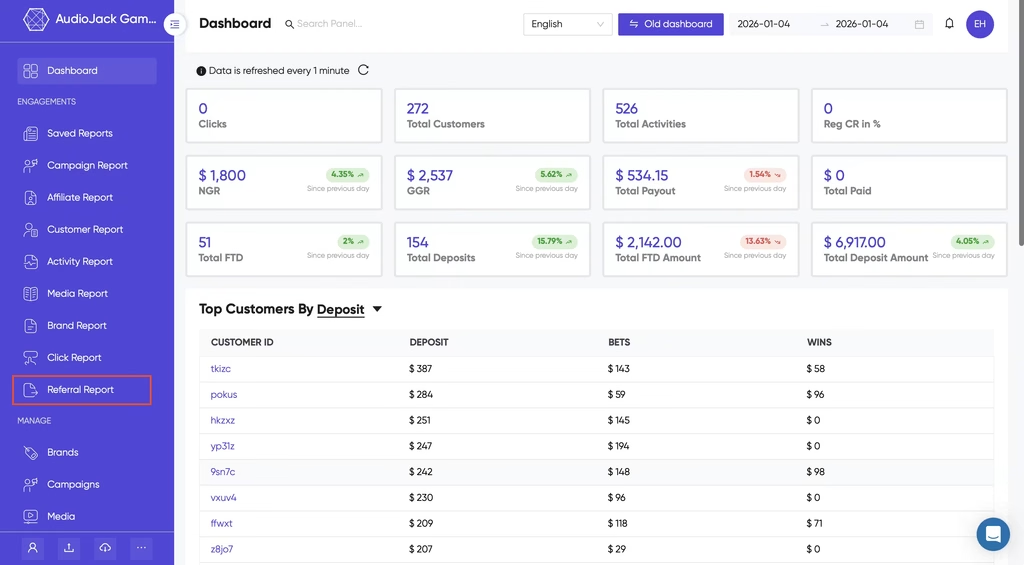
Sign in to your Affnook account and open the main dashboard.
Step 2: Open the Referral Report
Navigate to “Reports” and select “Referral Report”.
The report will display the available referral performance data, which you can then filter and analyze according to your requirements.
Understanding the Referral Report
The report allows you to select specific attributes using the filter options. One of the key attributes available is:
- Name: Shows the name of the iGaming affiliate or partner who generated the referrals.
The referral data is then organized into three levels, followed by a total.
Referral Level 1
Level 1 represents referrals generated directly by an affiliate.
- Referrals: Shows the number of direct referrals generated by the affiliate.
- NGR: Displays the NGR generated from Level 1 referrals.
- Payout: Shows the commission earned from Level 1 referrals.
Referral Level 2
Level 2 represents referrals generated by sub-affiliates under a Level 1 affiliate.
- Referrals: Shows the number of referrals generated by Level 2 sub-affiliates.
- NGR: Displays the NGR generated by those referrals.
- Payout: Shows the commission earned from Level 2 referrals.
Referral Level 3
Level 3 represents referrals generated by sub-affiliates under Level 2.
- Referrals: Shows the number of referrals generated at Level 3.
- NGR: Displays the net gaming revenue generated by Level 3 referrals.
- Payout: Shows the commission earned from those referrals.
Total
The “Total” section combines referral performance across all levels.
- Referrals: Total number of referrals across Level 1, Level 2, and Level 3.
- NGR: Total NGR generated across all referral levels.
- Payout: Total commission earned from all referral levels.
How to Filter the Referral Report?
You can customize the report when you want to focus on specific affiliates or use an existing reporting configuration.
Step 1: Open the Filters – Click the filter icon located at the top-right corner of the report. This opens the available filtering options.
Step 2: Select an Affiliate – Choose one or more affiliates to view data specifically related to those affiliates. This is useful when you want to identify an individual affiliate’s referral contribution or compare performance between different partners.
Step 3: Select a Saved Report – You can also choose a previously saved report from the “Saved Report” option. Saved reports allow you to quickly apply predefined filter settings instead of configuring the same filters each time.
How to Export the Referral Report?
After reviewing or filtering your data, you can export the “Referral Report” for additional analysis. The report can be exported in CSV or Excel format by selecting the export icon at the top of the report.
Exporting the data can be useful when you need to:
- Share referral performance with your team.
- Compare affiliate performance across different periods.
- Perform additional analysis outside the platform.
- Add referral data to other dashboards or reporting tools.
Wrapping Up
The referral report gives affiliate managers a clearer view of how their referral network is performing.
By tracking referrals, NGR, and affiliate marketing payouts across Level 1, Level 2, and Level 3, you can understand both direct affiliate performance and the contribution of sub-affiliates.
Filters make it easier to focus on specific partners, while saved reports and export options simplify recurring analysis and data sharing.
If you want better visibility into your affiliate and referral performance, book a free demo.